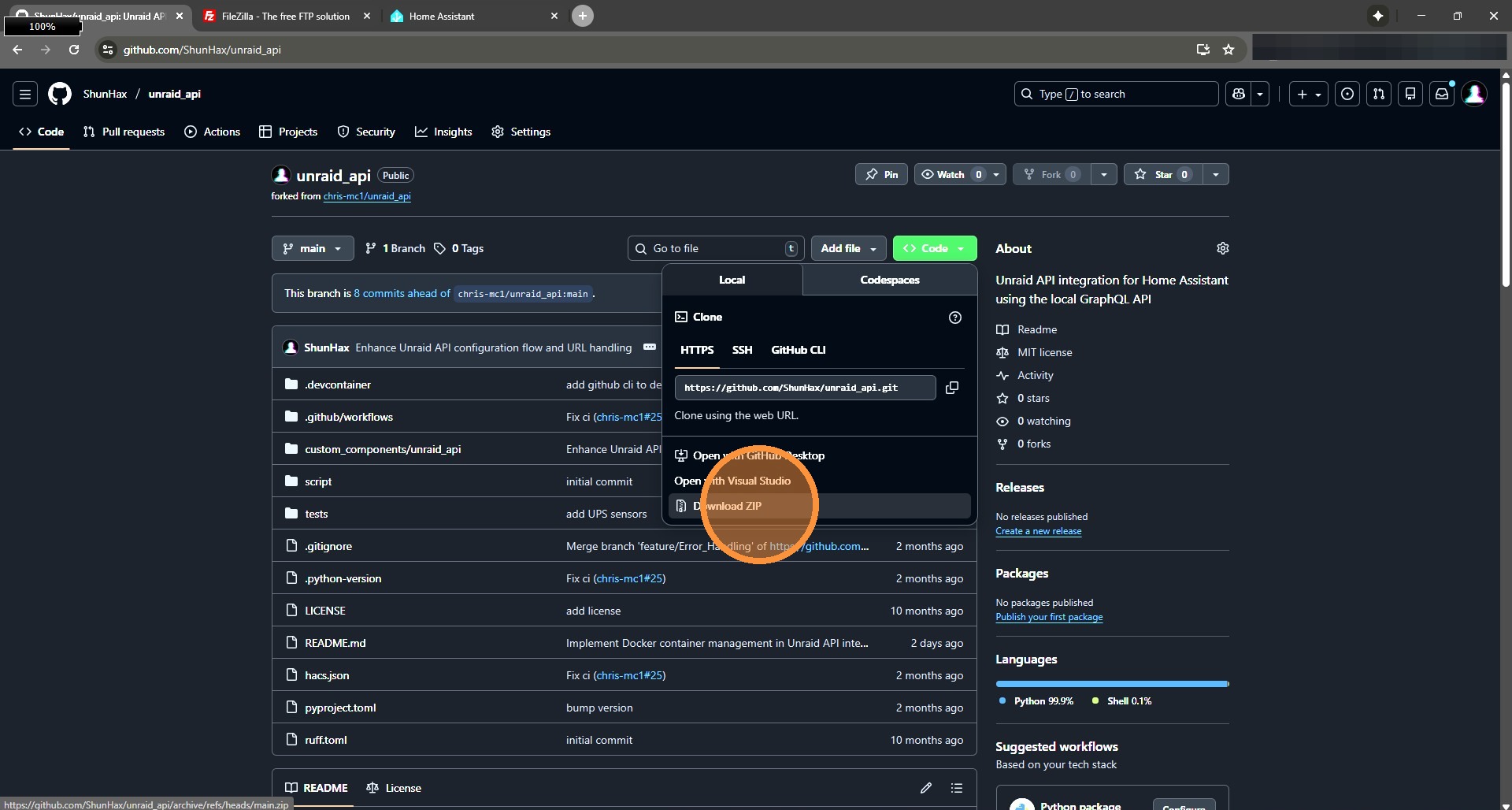
1. Head to the Github repo of the integration and select Code, then Download Zip
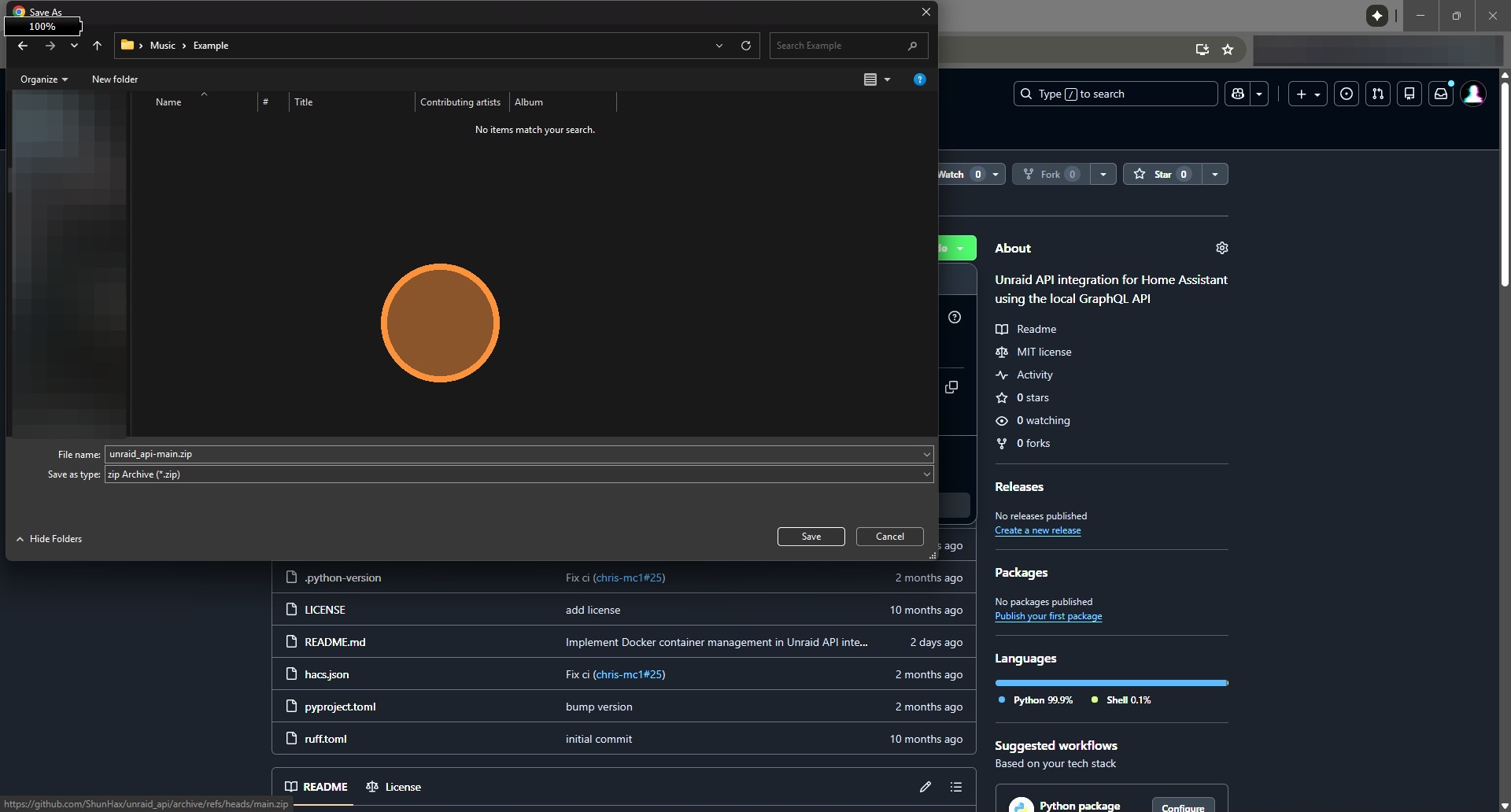
2. Place the zip wherever you want, we will need to extract it in a moment.
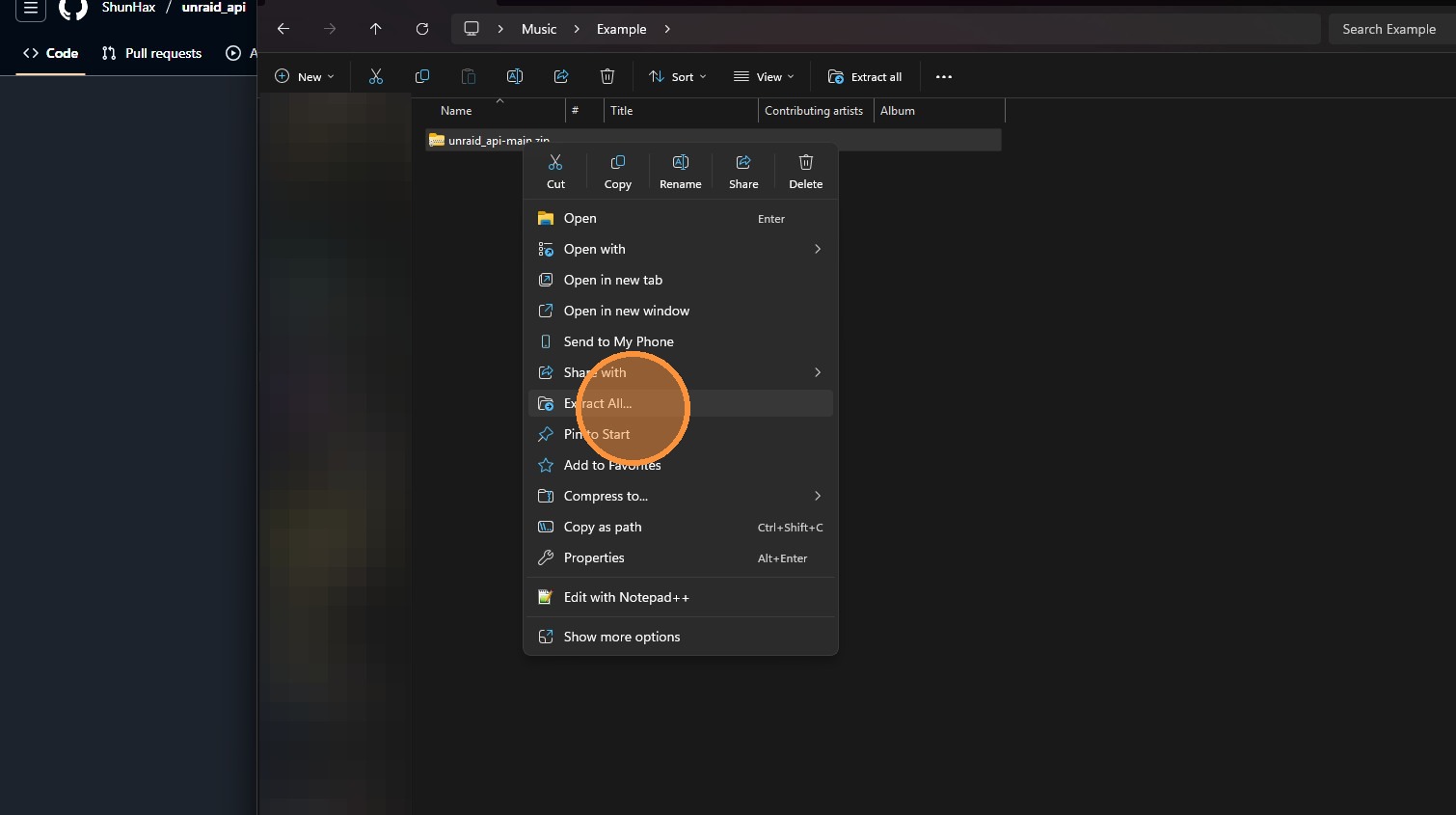
3. Navigate back to where you saved the zip and extract as normal.
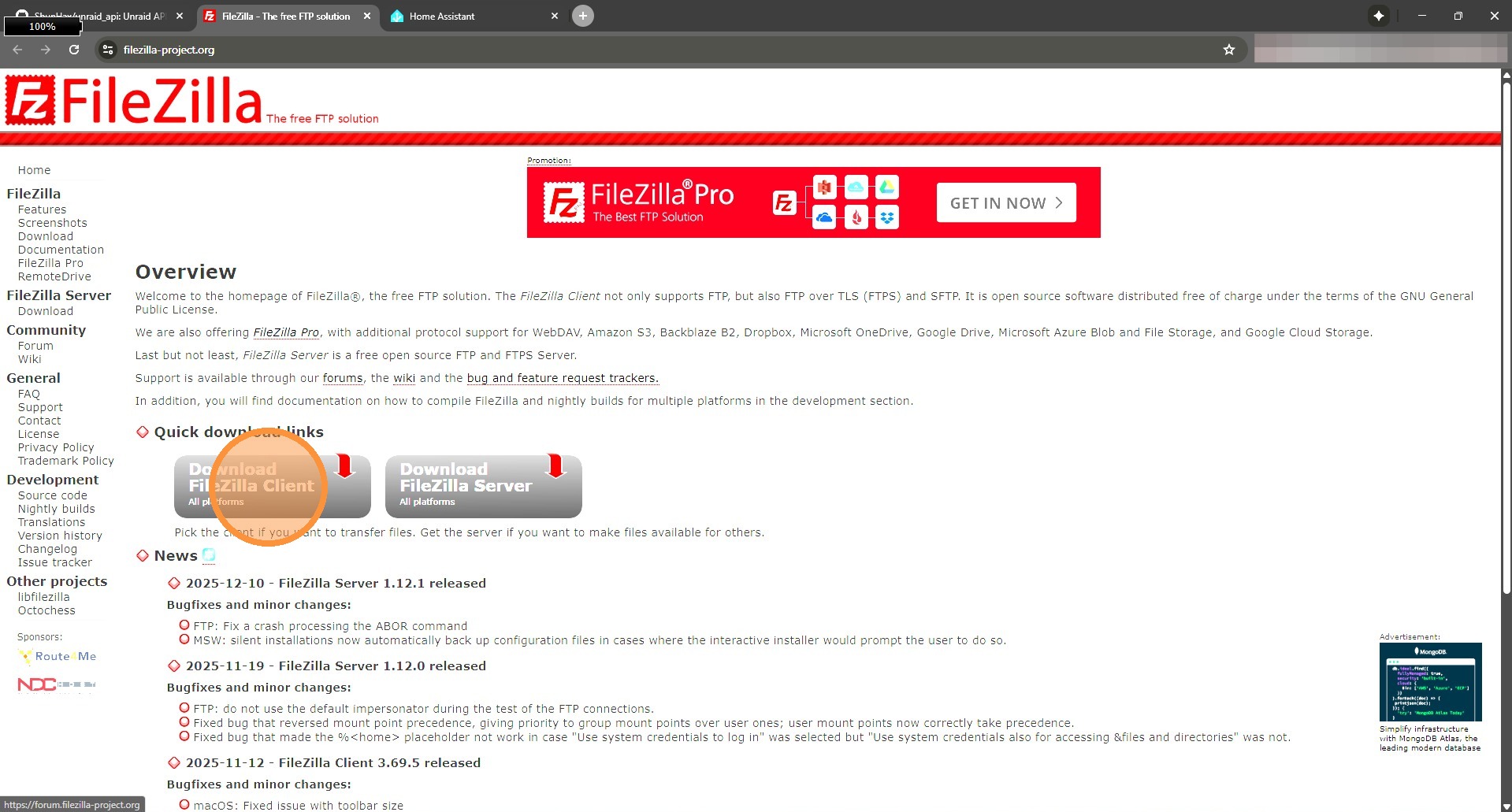
4. Next we need to get access via FTP to HomeAssistant. I use FileZilla as it’s the easiest. Google it and download the latest version of the Client.
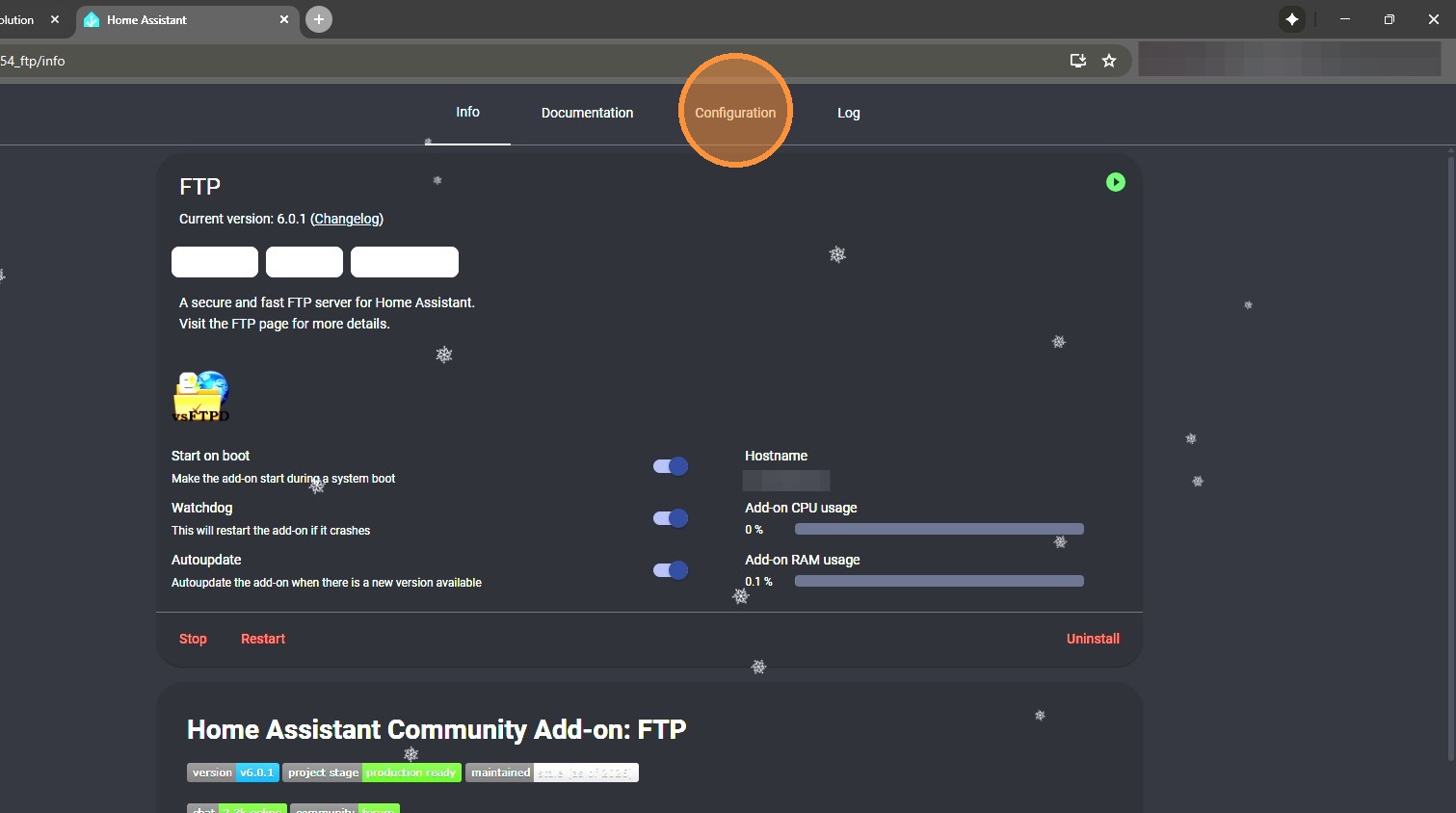
5. Now hop into HomeAssistant and make sure you have the FTP add-on installed, and configured per the documentation.
If you aren’t able to access the FTP server, check the configuration and that the add-on is started. Under the user make sure ALL permissions are turned on.
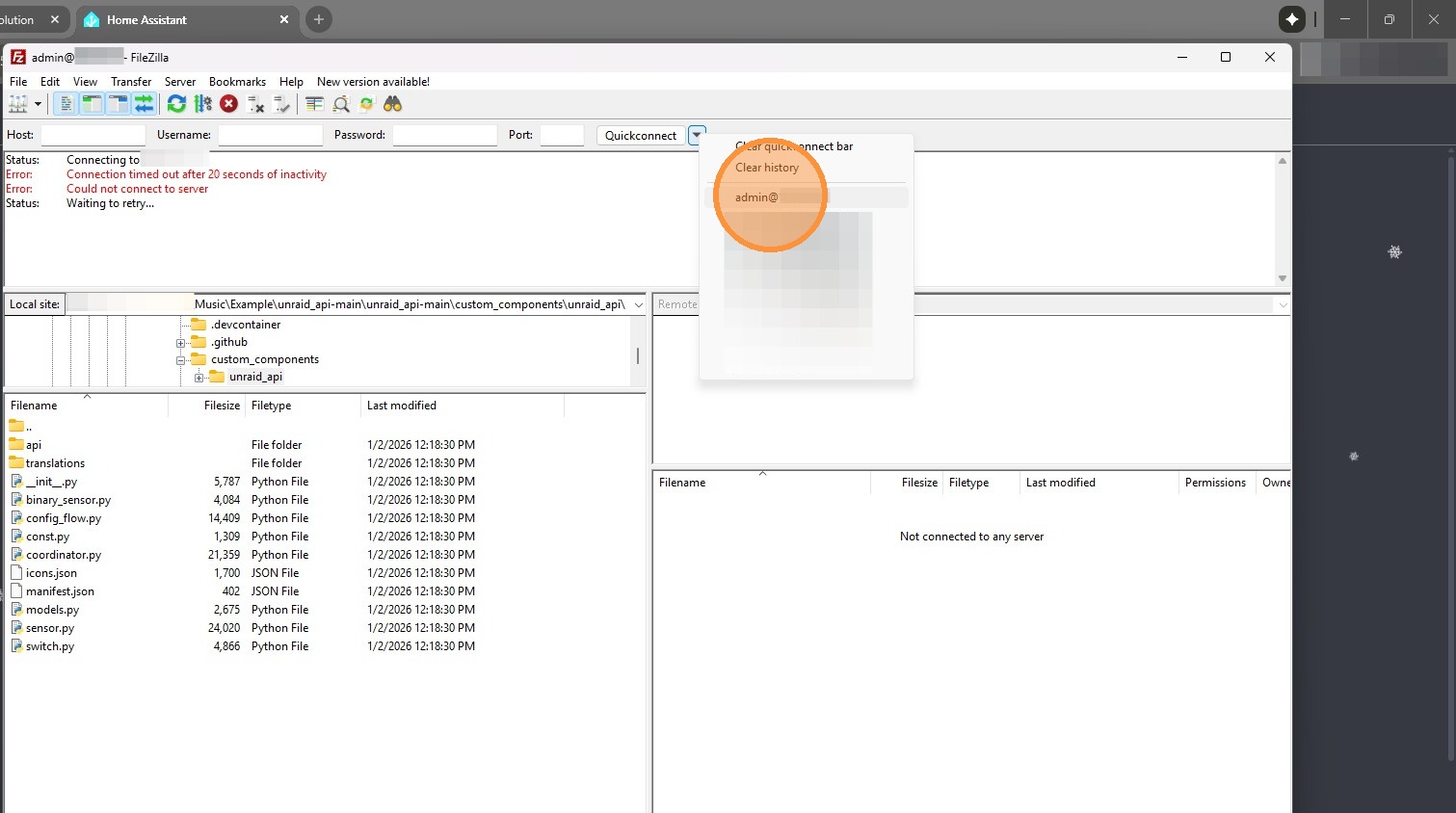
6. Once installed, open up filezilla, and enter the credentials up top. HA IP address, FTP username and password, and the port is 21 if you don’t have SSL setup.
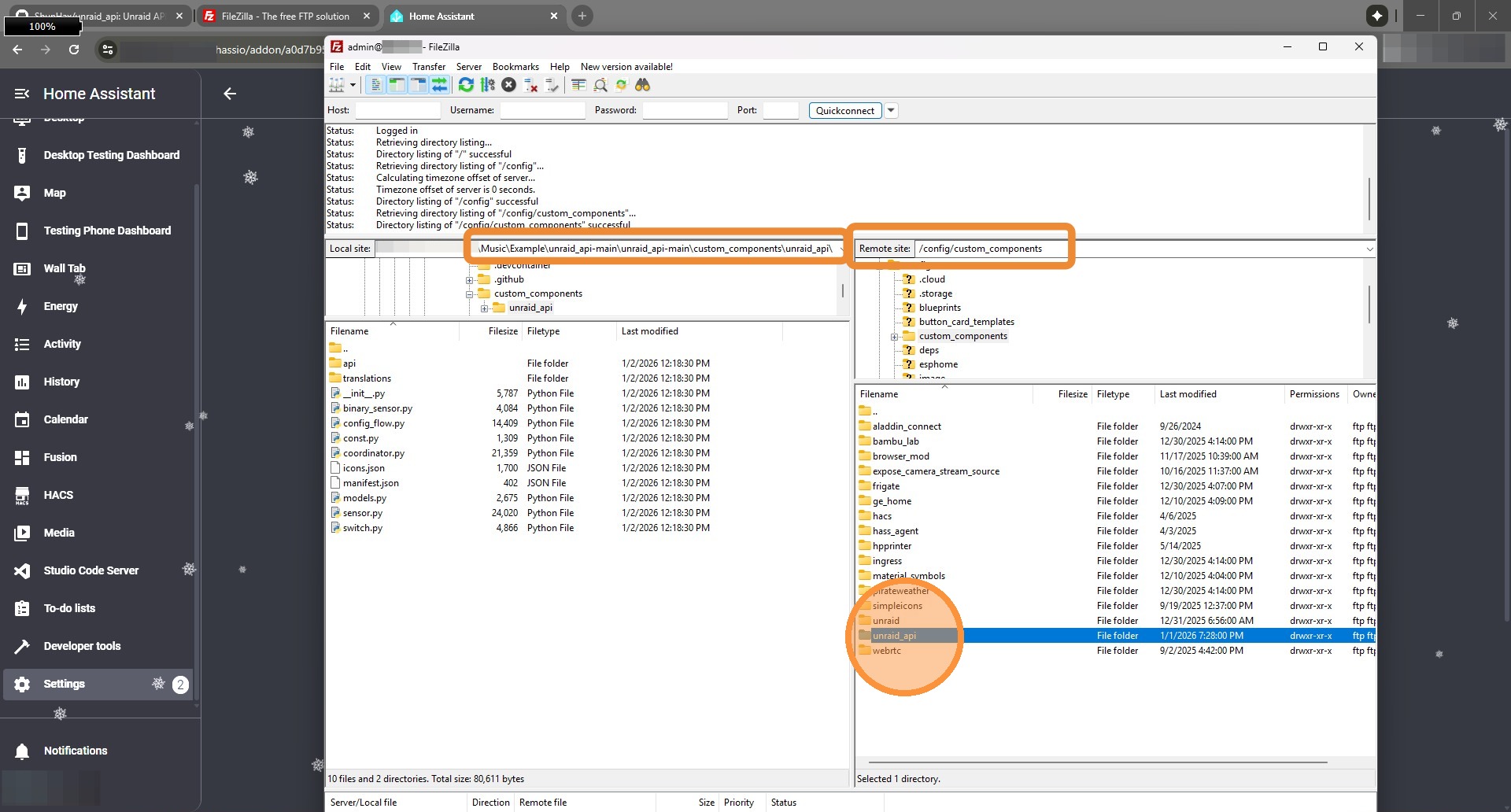
7. On the left navigate to the folder where you extracted the GitHub files. On the right navigate to /config/custom_components/
In here you should see a folder similar to your integration. In this case we’re using unraid_api. Go into that folder to see what files we need to replace.
For my example, the GitHub extracted folder contained custom_components/unraid_api, that’s where I’m pulling files from.
8. Now you’ll need to delete all of the files that you’re replacing, just to be safe. In my case I’m replacing the entire integration with new files. So select the files, right click and delete. (You can optionally leave the pycache folder. It’s just cache and will be regenerated.)
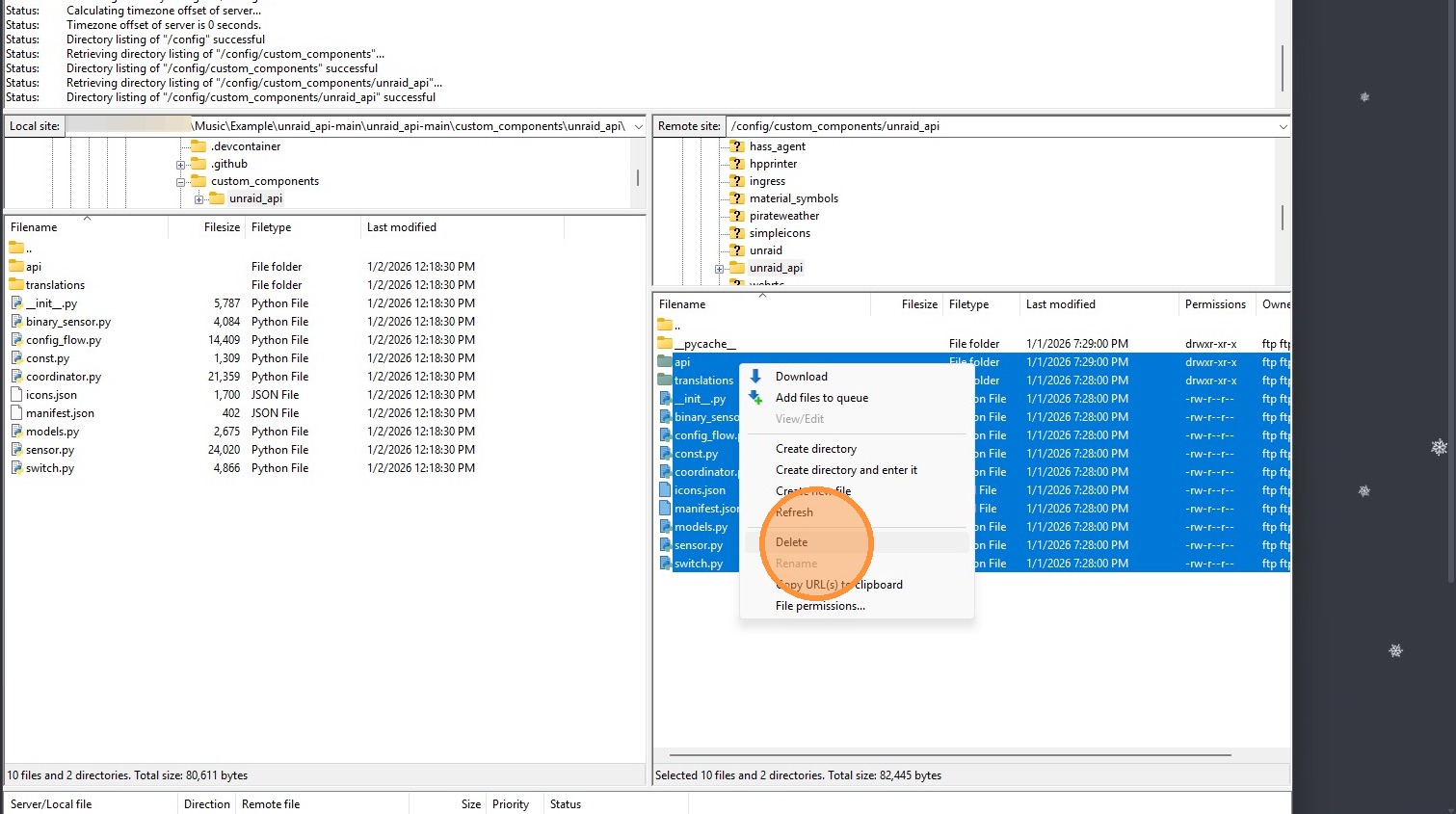
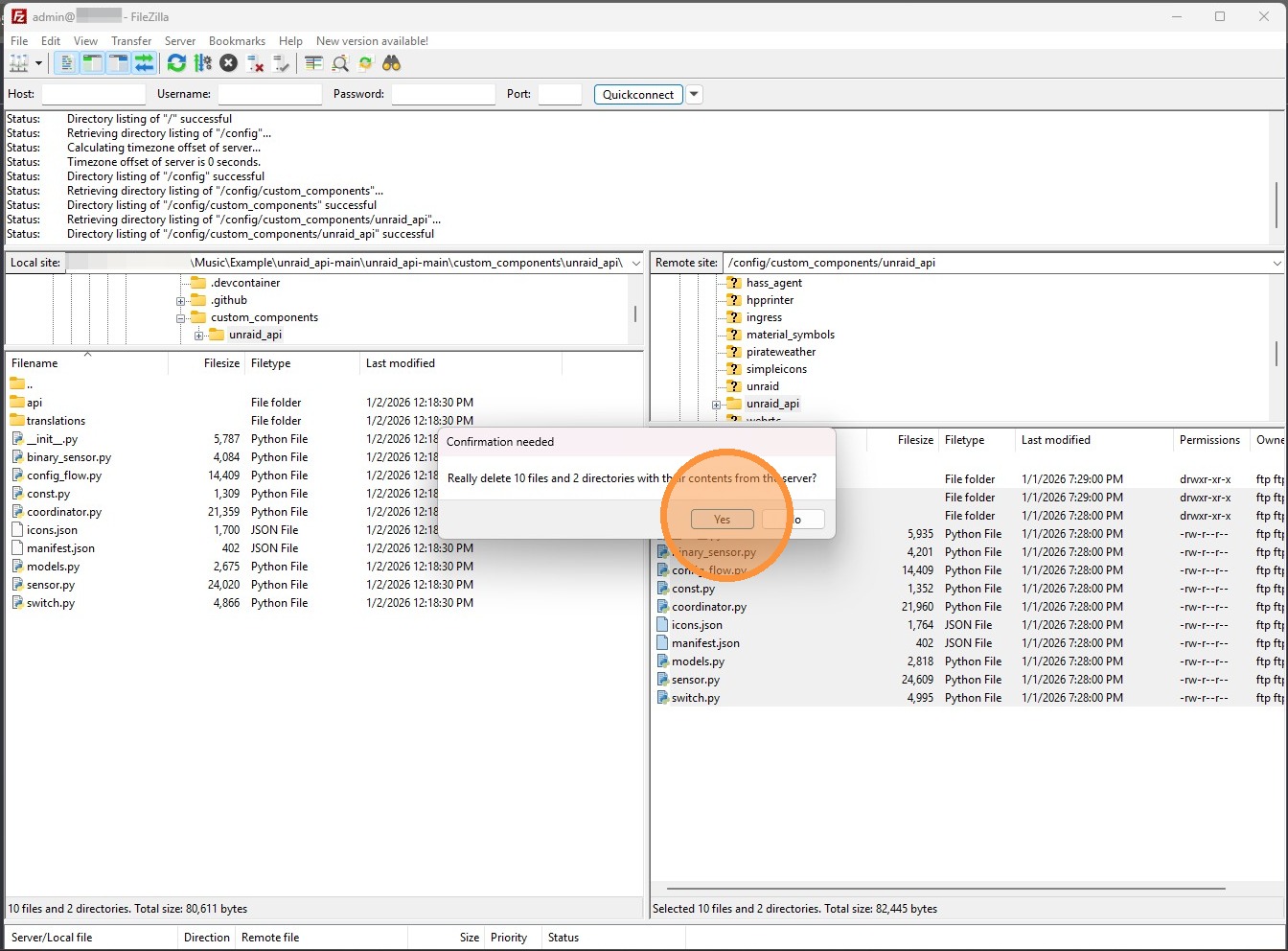
9. If prompted, click Yes to delete all files.
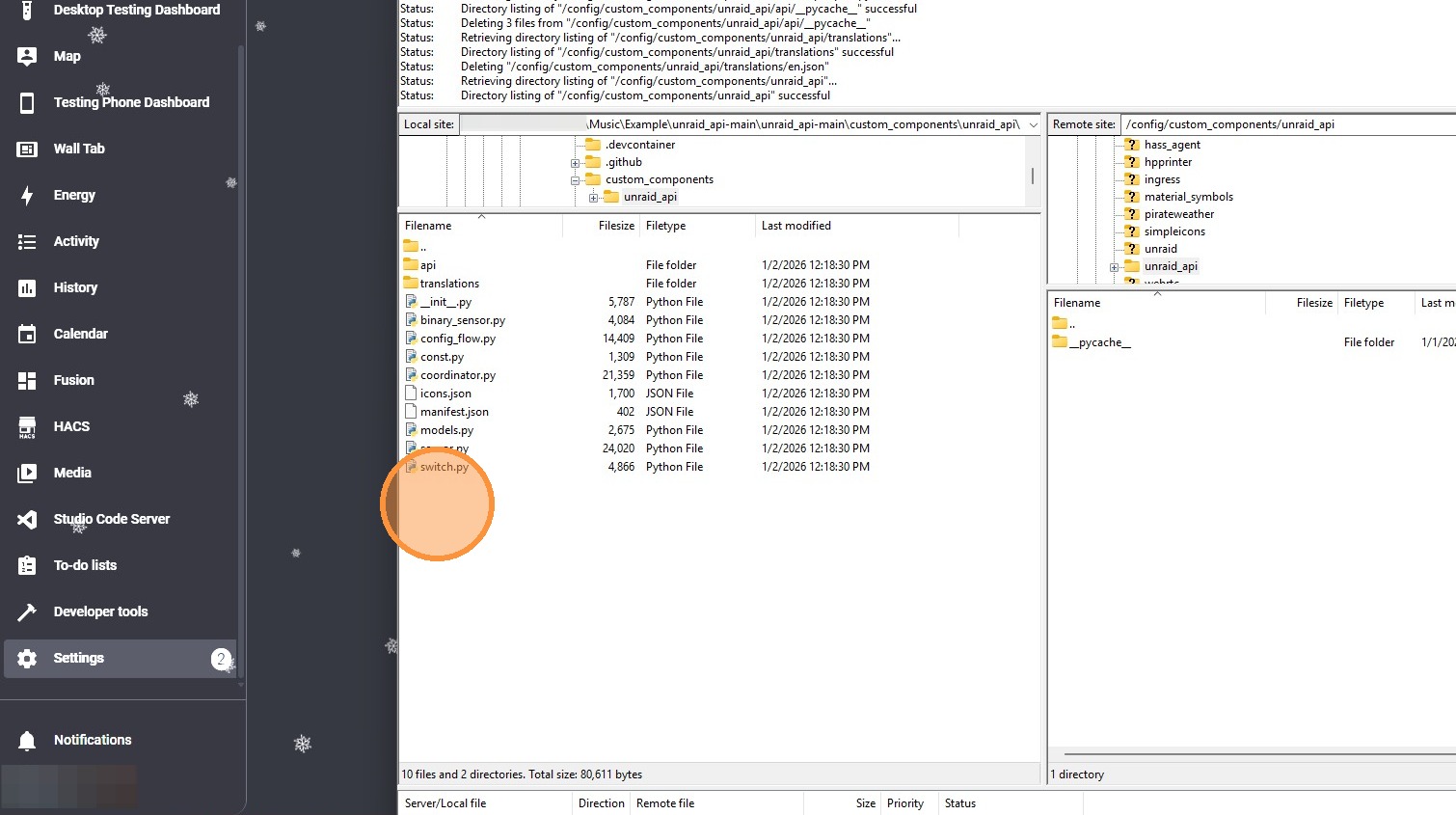
10. Now you’ll need to replace the files you deleted with the new files. Again, in my case I’m replacing everything. So select all files under custom_components/unraid_api, and drag and drop from the left side to the right side.
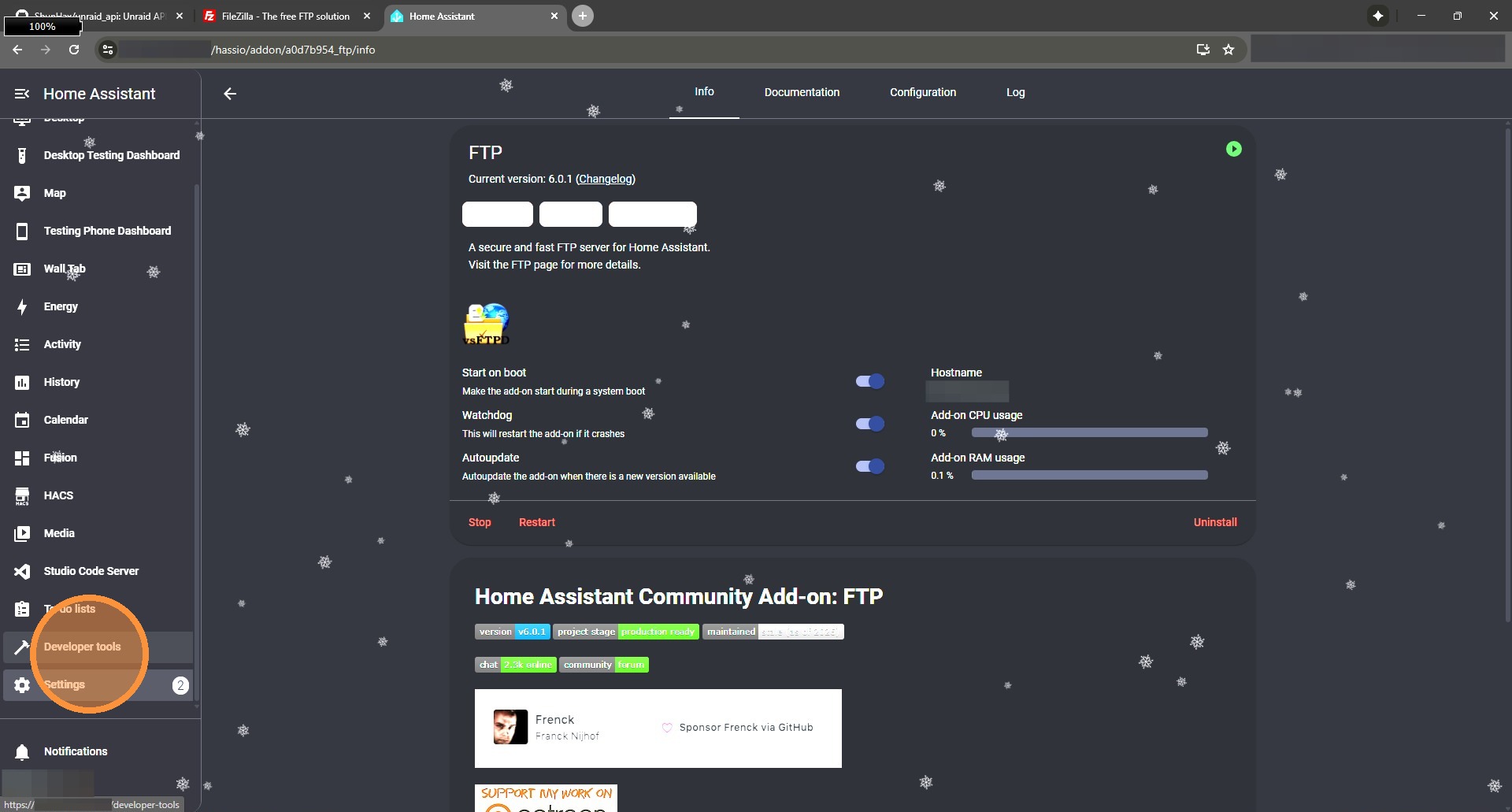
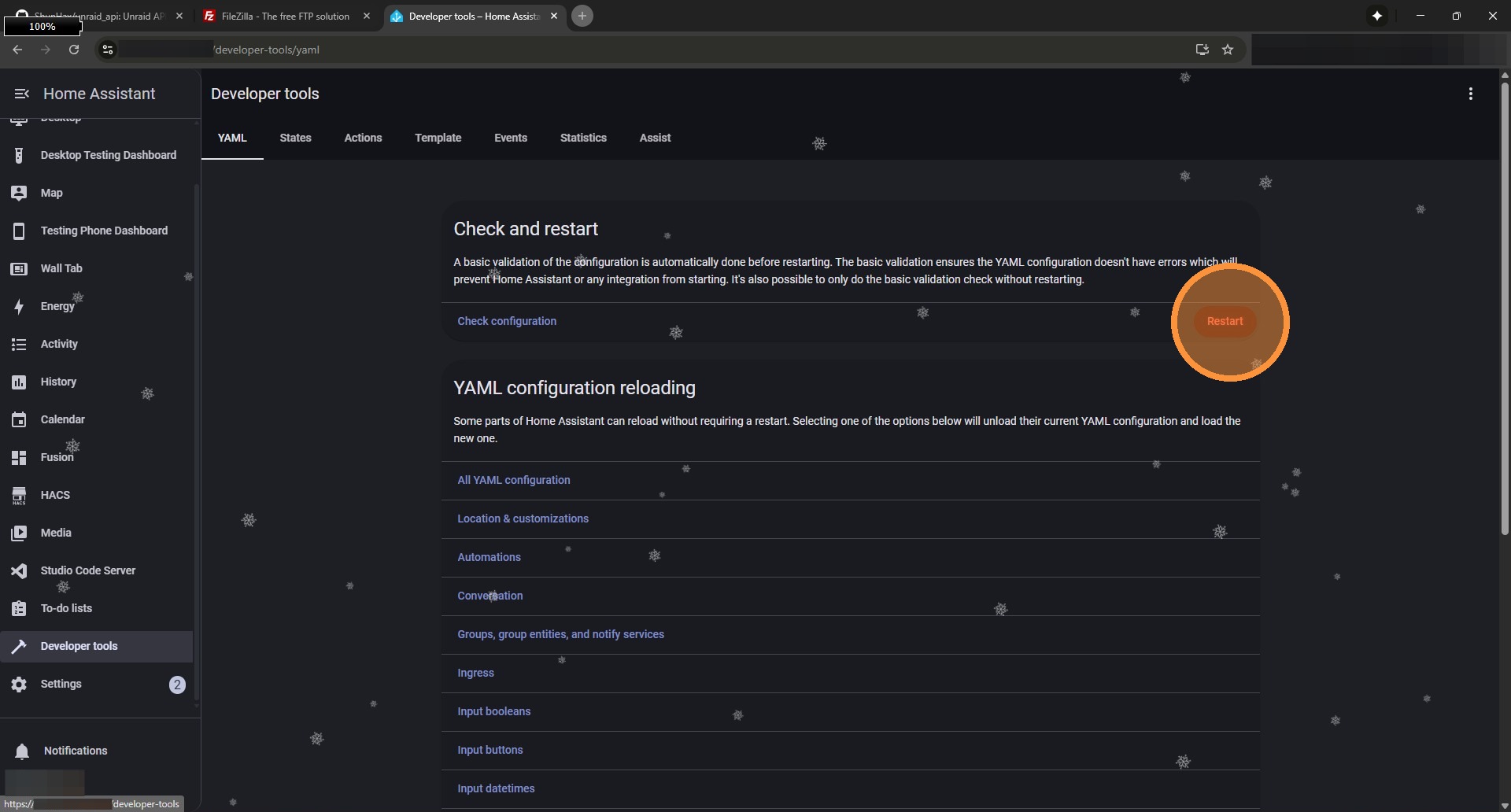
11. Once all files are uploaded, go back into HomeAssistant and select Developer tools.
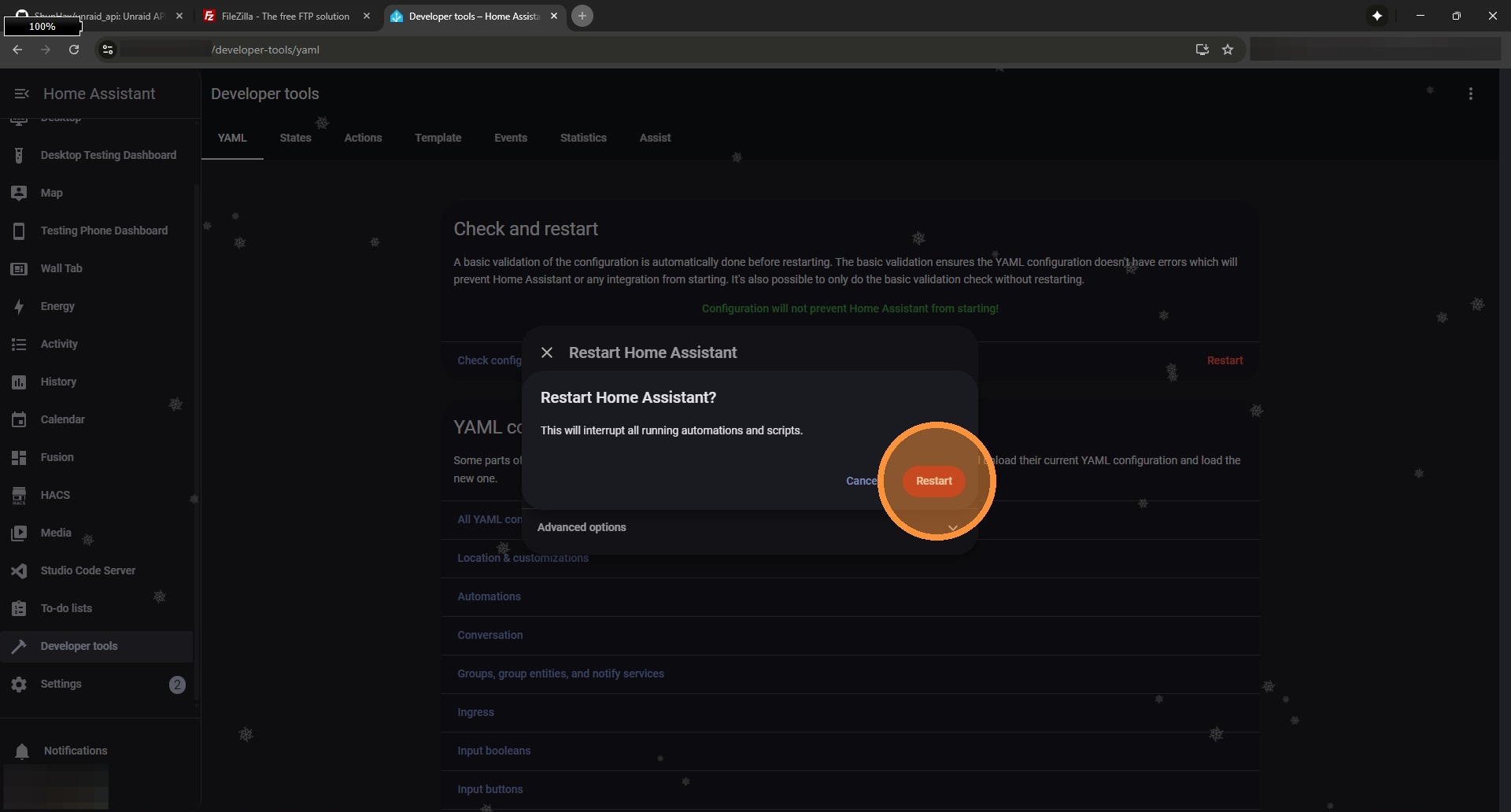
12. Click Restart
13. Then Restart Home Assistant.
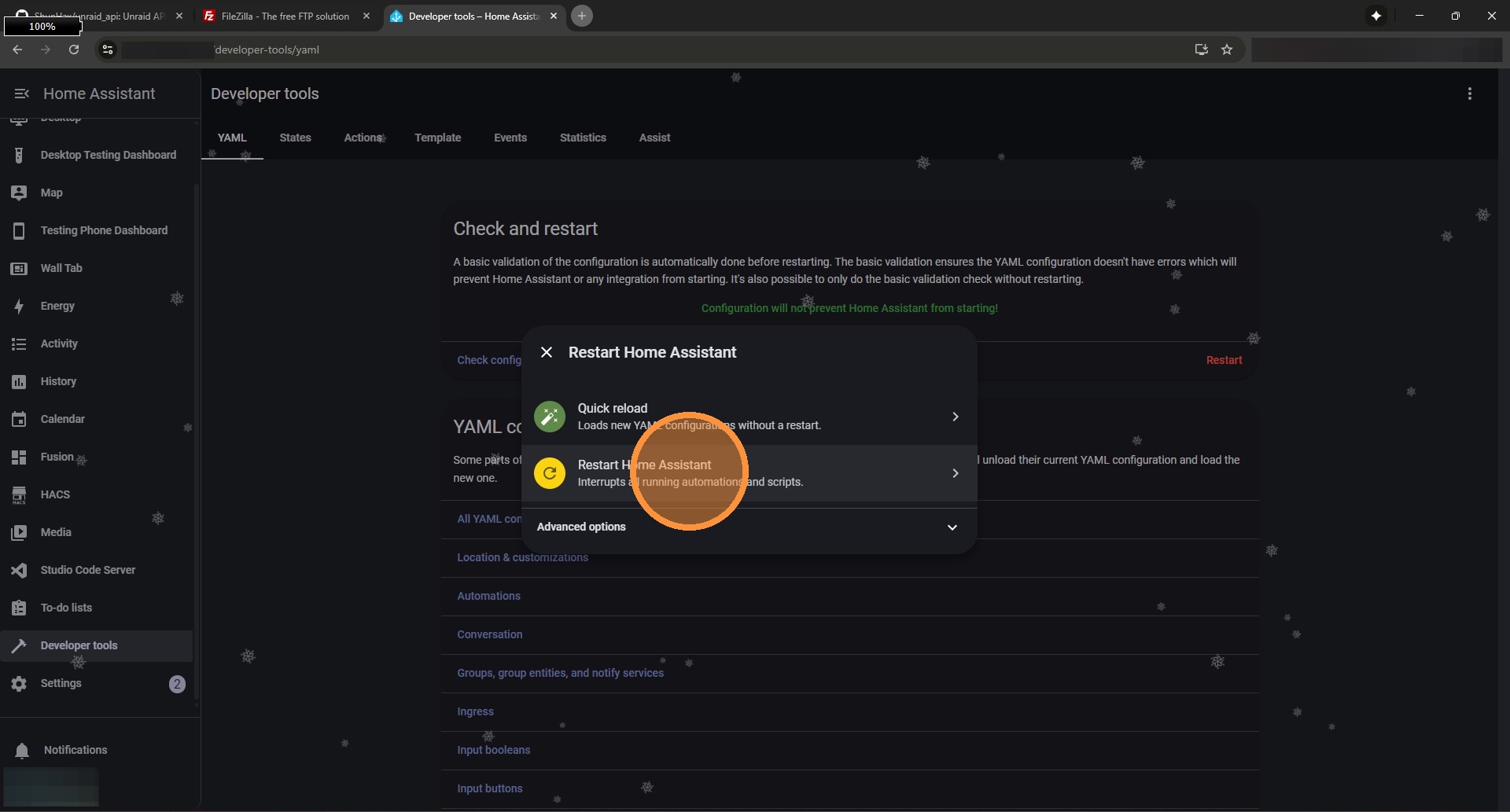
14. Finally Restart. Wait for HomeAssistant to be completely back up, and try adding the integration again. If there are major changes between the version you had previously installed and the one you uploaded, it’s best practice to DELETE the old integration and re-add it.